
Genius Scan and iOS 27
Genius Scan has always been designed to feel at home on iPhone. With our latest updates, we’re taking that a little further again!
Genius Scan can now make better use of some of the ways iPhone helps you find information and get things done. You can ask Siri AI to find or share a document, search for scans through Spotlight, create shortcuts for actions you use often, and start a scan from more places on your iPhone. And with the upcoming iPhone Duo, Genius Scan will also make better use of the iPhone’s new, larger screen.
Ask Siri AI to find and share your documents
One of the simplest changes is also one of the most useful: you no longer always need to open Genius Scan to find a document. With Siri AI, you can make requests in natural language. For example, you can say:
“Show my latest scan.”
Or:
“Send document titled “errands note” to Jane.”
Siri AI can understand the request and work with Genius Scan to find the relevant document or share it. This is part of a broader change in how you interact with your iPhone. Rather than thinking about which app contains a document, you can start with what you want to do.
Genius Scan documents are also available through Spotlight, Apple’s system-wide search. So if you remember the name of a document but not where you saved it, you can search for it directly from your iPhone. Your scans become more accessible as part of your iPhone, rather than being confined to Genius Scan.
Create your own shortcuts
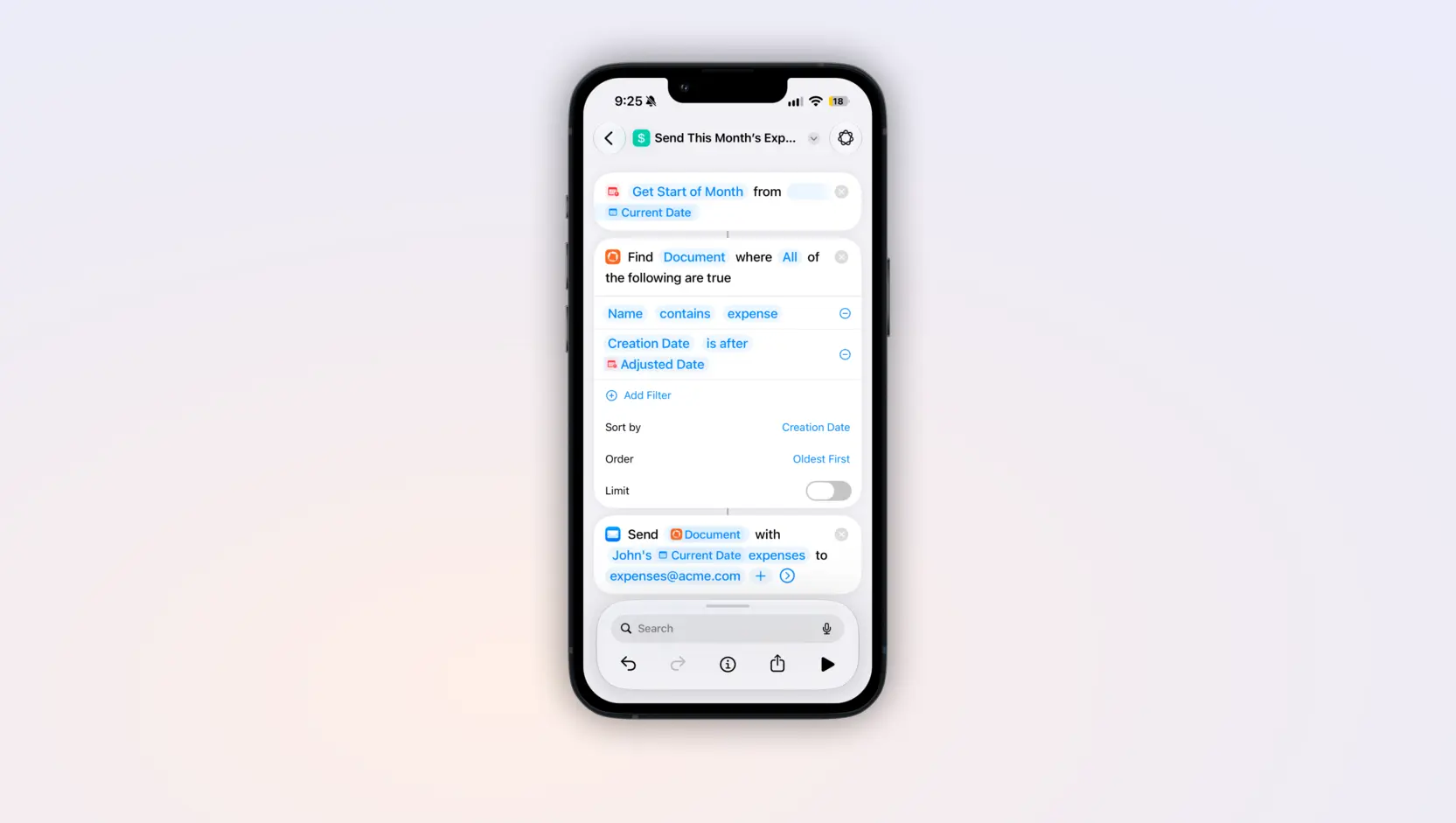
For people who regularly perform the same actions, Shortcuts takes this one step further. Apple’s Shortcuts app lets you combine actions from different apps and trigger them from places like Siri, Spotlight, or other parts of the system.
For example, you could create a shortcut to open a particular document in Genius Scan, or build a workflow around documents with a particular tag or date. Once you’ve set it up, you don’t need to repeat the same navigation every time. This can be especially useful for documents you access regularly. Your ID, your resume, or a folder of work documents can all be just a shortcut away.
Start a scan from more places
You can also launch a scan directly from several parts of iOS, including the Lock Screen, Control Center, and Action Button. The Action Button can be configured to run a shortcut, making it another convenient way to trigger a Genius Scan workflow. You can even start a scan from the Messages app.
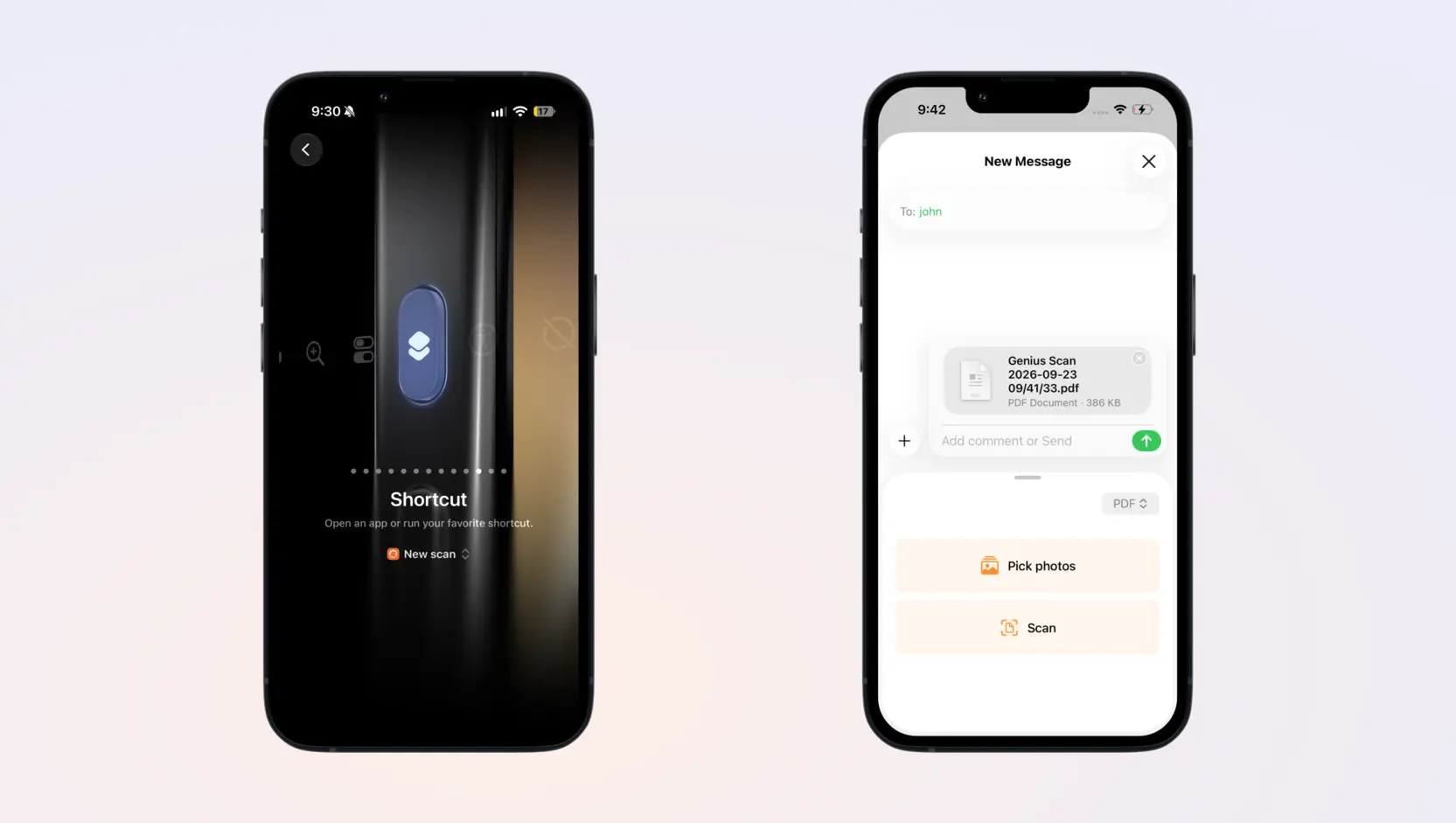
And just like that, you can start a scanning session precisely when you need it, without having to unlock your device or open the Genius Scan app.
Ready for iPhone Duo
Apple’s first foldable iPhone, iPhone Duo, introduces a very different form factor. When opened, it has a 7.6-inch internal display, giving you considerably more room to view and work with content. Apple specifically positions the larger display for multitasking and working across apps.
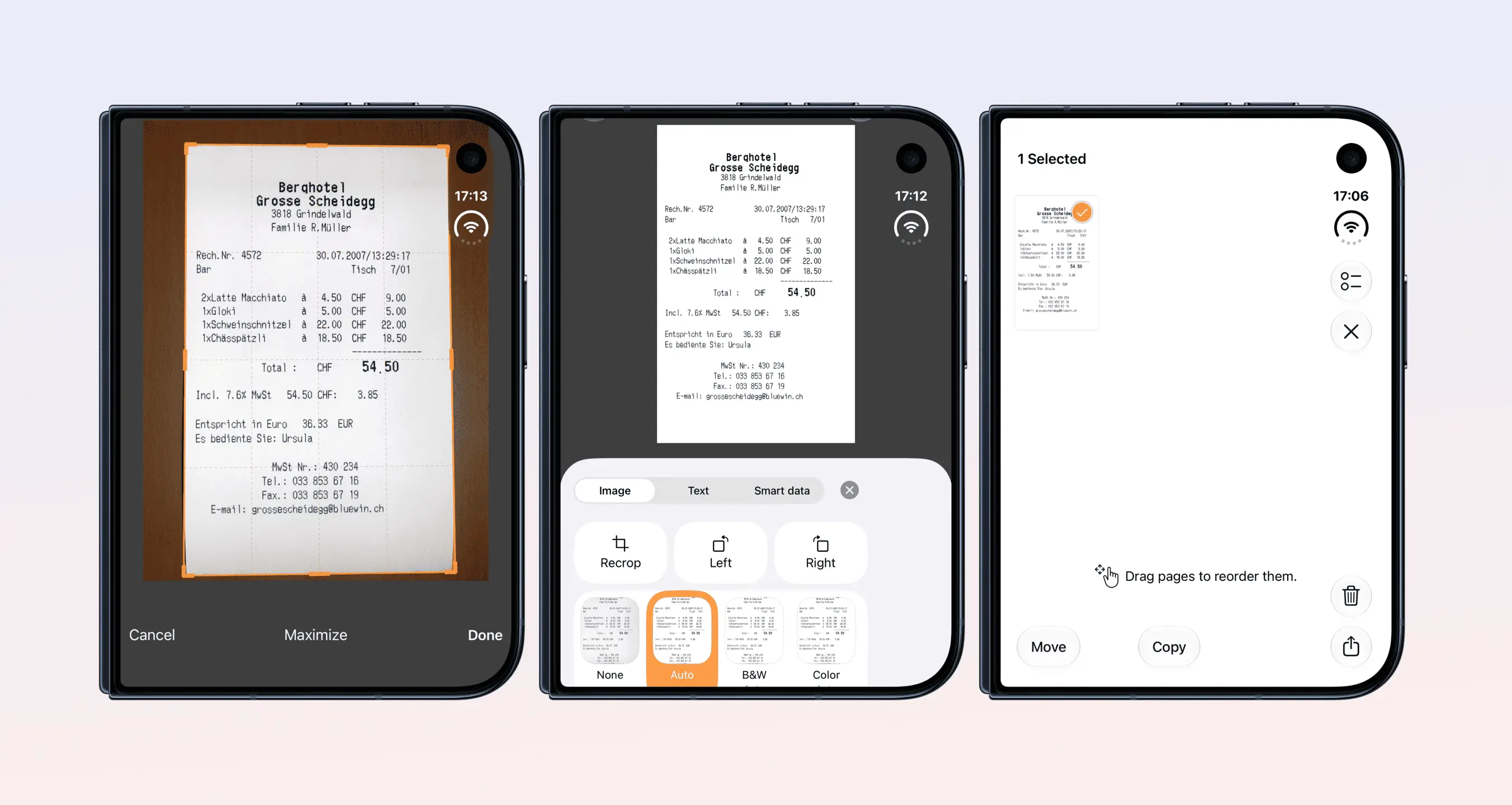
If you’ve used Genius Scan on iPad, the idea will be familiar. A larger screen gives you more space to review a multi-page document or browse your library.
With iPhone Duo, for instance, you could have a document open in Genius Scan while referring to information in another app, or reorganize your Google Drive folders to match your auto-export rules in Genius Scan. iPhone Duo will be available starting October 23, and Genius Scan will be ready for the new form factor.
A more helpful Genius Scan with AI
Genius Scan now includes an AI chat assistant that can answer common questions, point you toward the relevant help documentation, and suggest actions that may solve your problem.
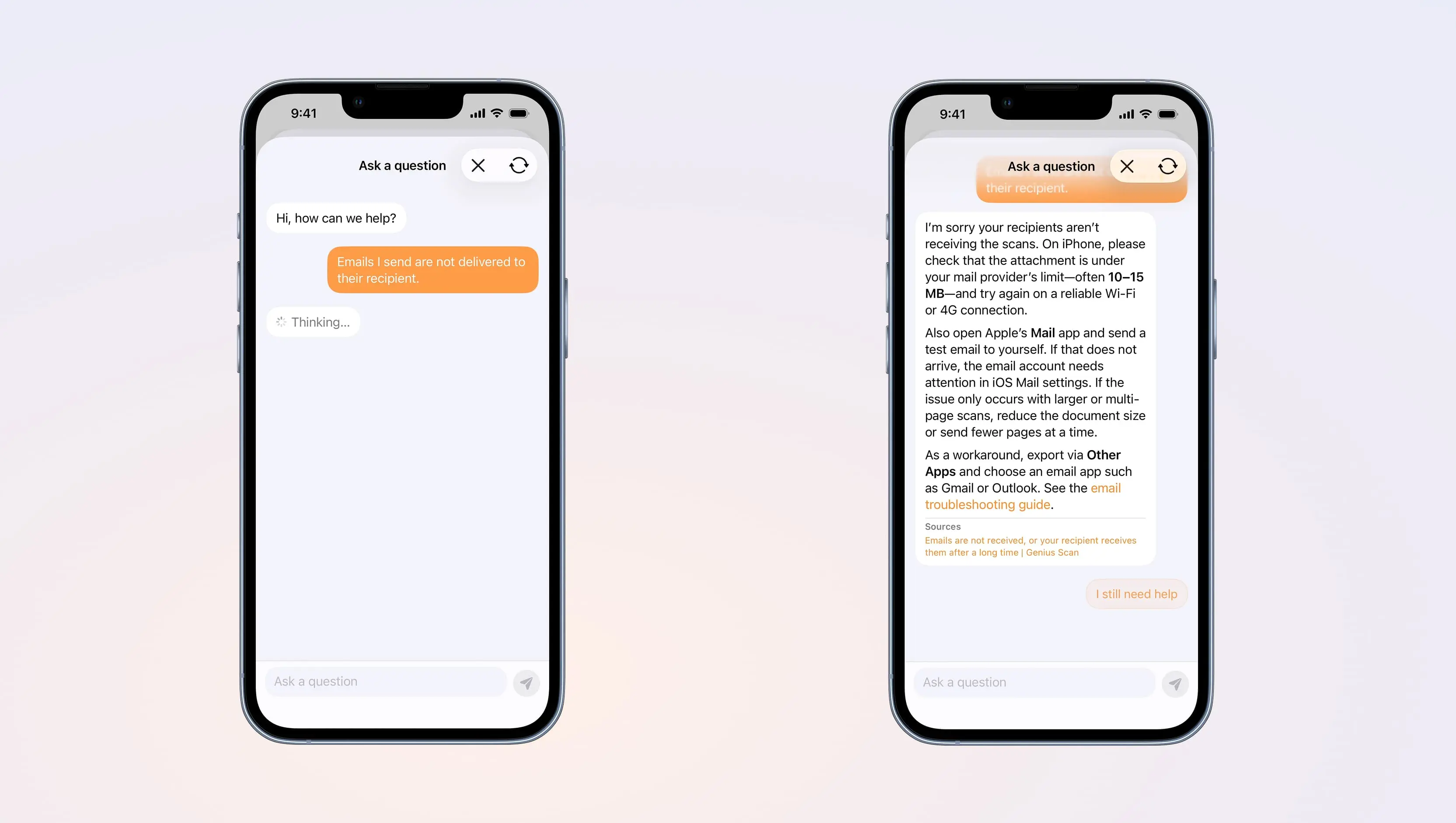
It’s designed to help you get an answer without having to search through the entire help center yourself. And if you need more assistance, our email support remains available.
We’ve always tried to adopt the technologies and conventions of the platforms we support rather than making Genius Scan feel like an isolated app. These updates continue in that direction: less time navigating to your documents, and more ways to work with them wherever you are on your iPhone.