Wednesday, May 8, 2013

From 0 to 100 million scans


On that day of June 2010, we nervously pulled the trigger and Genius Scan was live. Three years later, Genius Scan is reaching 10 million downloads and 100 million document scanned and still requiring very little maintenance.

Accidental start

The story of Genius Scan starts back in 2010 when I was supposed to fly back to France from Champaign, IL. Unfortunately, Eyjafjallajokull had decided otherwise. Stuck in Chicago and betting on a refund of my airfare, I bought a MacBook and started developing this app Guillaume and I had been discussing for a while in the air.

http://commons.wikimedia.org/wiki/File:Eyjafjallajokull-April-17.JPG

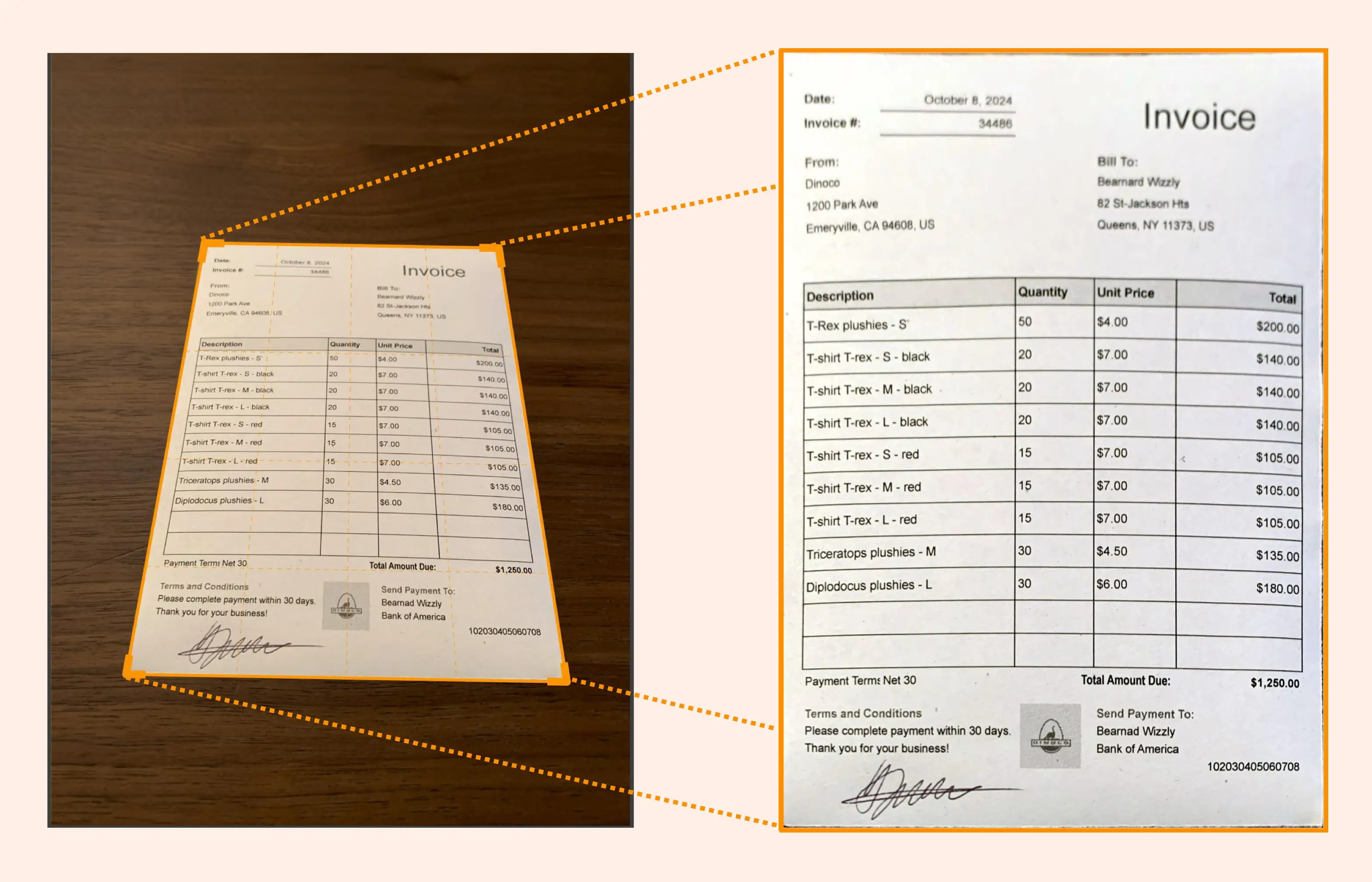
Genius Scan was a simple tool that would let people scan photos from their phone and email them as PDF files. The cool central feature would be that it would detect the frame of the document, correct the perspective and apply black and white post-processing to enhance its legibility. Our only focus was speed (it had to be fast and we optimized the code and algorithm for that) and simplicity (it required the minimum number of steps from the user.)

 Version 1.0 was released as a free app and shot up in the rankings. Our original goal was to turn it into a paid app soon after. However, as we did that and realized that we would lose our rankings, we decided that ranking high and getting lots of love from lots of users was better than making some money and reverted to a free app.

Growth

Monetization of the free app became natural as Apple launched iAd around that time. For those who remember, that was the summer when the eCPMs were sky-high. We only added a single banner at the bottom of one screen of Genius Scan as we hated apps that were full of advertisement and popups (it didn’t prevent all the ad networks of the planet to reach out to us) Later that year, we published a paid version of Genius Scan which supported exporting documents to the most popular cloud services such as Box, Dropbox, Evernote, Expensify and we kept the free app fully functional. Special shout out to Box and Expensify for being great partners!

Growth since then has been organic. Paying to acquire users wouldn’t have made sense given the small amount of revenue per user. Genius Scan was featured several times and even awarded “#1 Top Free Business app” in 2010 by Apple.

75% of our users use Genius Scan for work. Some communities of small businesses such as healthcare, real-estate, law practices who rely a lot on paper and routine procedures are particularly fond of tools like Genius Scan that make their life easier. One of the most common ways people discover Genius Scan is by word of mouth.


Then, as we found time, we expanded to Android to look for more growth opportunities. While Android drives less profit than iOS, it’s definitely a non-negligible source of revenue.

We have now reached 10 million downloads. But what pleases us even more is how many of our users are active users. Genius Scan has now more than 1.2 million monthly active users and over the last 3 years, these users have scanned more than 100 million documents.

Operations

Dealing with so many users for a small 2-person team working on their free time requires some juggling and aggressive prioritization. One lesson is that not everything needs to be perfect at first. Looking back at Genius Scan 1.0, it had a fairly ugly UI, an even uglier icon and lots of limitations compared to the latest version but it didn’t prevent it from taking off (granted, standards have changed since 2010) but the basic structure was there.

Starting with a very very very simple UI


But we took the time of adding more features when we had enough data points telling us that this would make the user experience better and only adding them when we knew we could get them right. We used three main channels to understand our user needs. Analytics services such as Flurry or Mixpanel allow you to understand what features users are using mainly and which path they take in the app. Analytics should be part of the first release and should be considered as a feature by developers. The second channel is user support. Aside from reflecting bugs, user questions are often very revealing of usability issues as you walk the user through to let them achieve their goal. Finally, we still display an ad in Genius Scan; it’s easy for us to setup a different banner to poll users to fill in a quick Google Docs survey. With more than 1 million active monthly users, it doesn’t take longer than a day to get hundreds of helpful responses and users do take the time to fill in free form fields.

We also strive to provide the best support possible, which means that we respond to all requests in a timely manner but we focused on improving the support workflow to alleviate this task. This is a topic by itself that we plan to address in a subsequent blog post.

Great user support also translates in great reviews.


The Future

Looking at the numbers and the user requests, the next steps seem obvious for Genius Scan. Currently, documents are only stored on the phone itself and can be individually exported to the cloud. We need to provide first class support for synchronization and back up of these millions of important documents which often times are crucial to users and small businesses.

The Grizzly Labs is an ongoing collaboration between Guillaume and me, and we plan to keep experimenting with mobile apps that users can open knowing exactly what they will do for them and how they will be useful. More recently, we launched Genius Fax to make faxing as easy as possible from your iOS device (and it’s doing great) and Jotana, the first third-party Asana client for iOS.

Genius Scan "iPad" 3.2

Howdy! Today, we are excited to release Genius Scan 3.2!


First announcement: an iPad version, finally! The iPad version works very similarly to Genius Scan for iPhone. We know that you now want synchronization between device and this is our goal for one of the next major updates.


All the devices benefit from the following features:
  • Direct access to photos from the library from the main screen:

  • The camera is not started anymore when you only choose a file from the library,
  • Magnifier. The magnifier will help you crop the documents with more accuracy:


  • Support for Legal paper size
  • Easier access to edit the tags from the menu:


  • Tags are added as keywords in the PDF document to make it easy to find your documents later on your computer
  • We fixed a super annoying bug with the delete button of the tags
  • And as usual, lots of minor tweaks!


  • Note that Genius Scan is compatible with iOS 6.x and greater only from this version on. Almost all our users have switched and this helps us make Genius Scan great for everyone.

    Monday, May 6, 2013

    Jotana is now free!


    Today we are excited to announce a new update to Jotana.


    With this update, Jotana now uses OAuth to let you login, so you can now use your regular Asana login and password to sign in! Thanks Asana for supporting OAuth.

    Did you know that Jotana would use the first period to split between the title and the content of the note? Now Jotana will be smarter and only use period followed by spaces. And you can also use carriage returns.

    We also fixed a bug with the project display.


    Last but not least, we are now making Jotana free for everyone to enjoy. We have found it tremendously useful for our own use and thought more people should benefit from it. So spread the world and help your friends and colleague!


    Have a great and productive week!

    Genius Fax 1.1

    One of the most requested features for Genius Fax has been to support image files. Today, we are happy to release Genius Fax 1.1 with support for faxing PNG, JPEG and TIFF images.

    To fax an image, select an image in your favorite app and use the "Open In..." feature to open the image in Genius Fax. If you are using Genius Scan, when exporting an image, choose the JPEG option and tap on the "Other Apps" export plugin.

    Let us know if you have any feedback at geniusfax.support@thegrizzlylabs.com!

    Tuesday, April 23, 2013

    Tutorial for Genius Scan on Android

    This tutorial explains how to use the app Genius Scan for Android to scan documents, manage them and export them.

    Tip: at any time, you can get see the meaning of any button in the app; do a long press on it and a tooltip will appear.

    Step 1 - Open the camera
    Pretty simple here, press the Camera button.


    Step 2 - Take a picture
    Some tips to have a quality scan :
    - Make sure the whole document is included in the picture
    - Tap on the screen to focus if auto-focus doesn't do a good job
    - If possible, make sure to be in a bright environment
    - Change the flash mode if necessary by pressing the Flash button
    When you are ready, press the Camera button to capture the picture.


    Note : If you want to import a picture from your camera gallery, press the Gallery button.

    Step 3 - Select the area of interest
    Genius Scan detects the borders of your document and displays as an orange grid.
    You can manually rectify the corners or click on the Full page button to keep the entire picture.


    Step 4 - Enhancement
    Genius Scan enhances the image depending if it's mainly black and white or color.


    You can change the enhancement by pressing Choose Enhancement in the menu.


    Use the Export button to export the document to another app or the Move button to create a multi-page document (See Step 6).

    Step 5 - Export your scan
    The export dialog allows you choose the name, format and size of your scan and the app you want to use to export it. If you want to export your scan to GmailDropbox, Evernote, Expensify, Google Drive... you will need to install the corresponding app and choose it in this dialog.


    Step 6 - Create a multi-page document
    Your scans are automatically saved in the Scans tab on the Home screen.
    Select the scans you want to gather in a multi page document.


    Press the Move button and choose New document


    A multi-page document is created with these scans. You can reorganize pages, add other pages, export it as PDF...


    Step 7 - Extra tips
    If you want to save a scan/document to the SD card, install the app Send to SD card and export your scan/document to this app.
    Similarly, if you want to send your scan via Bluetooth, you can install the app Bluetooh File Transfer and choose the app in the export dialog.

    Remember : light is the most important factor to get quality scans, make sure you scan your documents in a bright environment. 

    Enjoy!

    Genius Scan 1.2 for Android

    The grizzly is excited to announce a new version of Genius Scan for Android.

    The main new feature is the improved export dialog. When you export, you will have at hand the different options: how to export, name of your export, which format to choose and last but not least, the file size.


    We also improved the settings (available via the menu button). You can now specify the default enhancement that must be applied to the scans and the quality of the images created by Genius Scan (the higher the quality, the more space it takes and the slower it will export on a 3G network). It also shows you the amount of storage used by Genius Scan.


    We also improved the help section and fixed tons of minor bugs. Enjoy and let us know how you like it!

    Wednesday, April 17, 2013

    5 Ways A Pocket Scanner Can Help You


    Originally posted on April 11th, 2013 in the Paperless 2013 blog


    Genius Scan is a pocket scanner for iPhone, Android and Windows Phone. Its purpose is simple: to help you quickly digitize documents, store them as PDFs and share them with coworkers. Here are just a few examples of how the millions of users who downloaded Genius Scan use it.


    You Don’t Have A Scanner

    Scanners are expensive and slow. Unless you need ultra-high resolution copies of a document, you’re better off using a mobile scanner. Unlike clunky scanners of the past, your phone is always with you – making it easy to scan and export documents on the road.

    A professional example is a designer who uses Genius Scan at home. His workflow involves sketching his designs on paper first. He doesn’t have a scanner, so when he is done with his sketches, he scans them and uploads them to the cloud using our Dropbox integration. He can easily share them for feedback and can get rid of the paper copy of his old sketches.

    Streamline Your Workflow

    Small business employees are often on the road collecting documents signed by customers. A pocket scanner enables them to scan these documents in the field and immediately send them to the main office. This handy solution ensures that important documents are never lost and streamlines the process by ensuring no wasted time waiting on signed documents to proceed.

    One of our users runs a small aircraft company. He spends his time flying and on the runways. One of his responsibilities is giving flight lessons. With Genius Scan, he can immediately sign the students paperwork and transmit flight plans to the central office. This is important both for the student’s records and for safety.

    Never Lose Your Sticky Notes

    Typing notes on a mobile phone is annoying. As a result, many people still use sticky notes to remind themselves of important tasks. But, sticky notes are easy to lose. With Genius Scan, you can quickly scan your notes and archive them with Evernote.

    An example we hear a lot is from users that love to cook. As you cook, you jot down recipes that you want to keep for later. Instead of letting sticky notes pile up in your kitchen drawer,  you can easily scan the recipe and upload the result to Evernote.

    Simplify Your Expense Reports

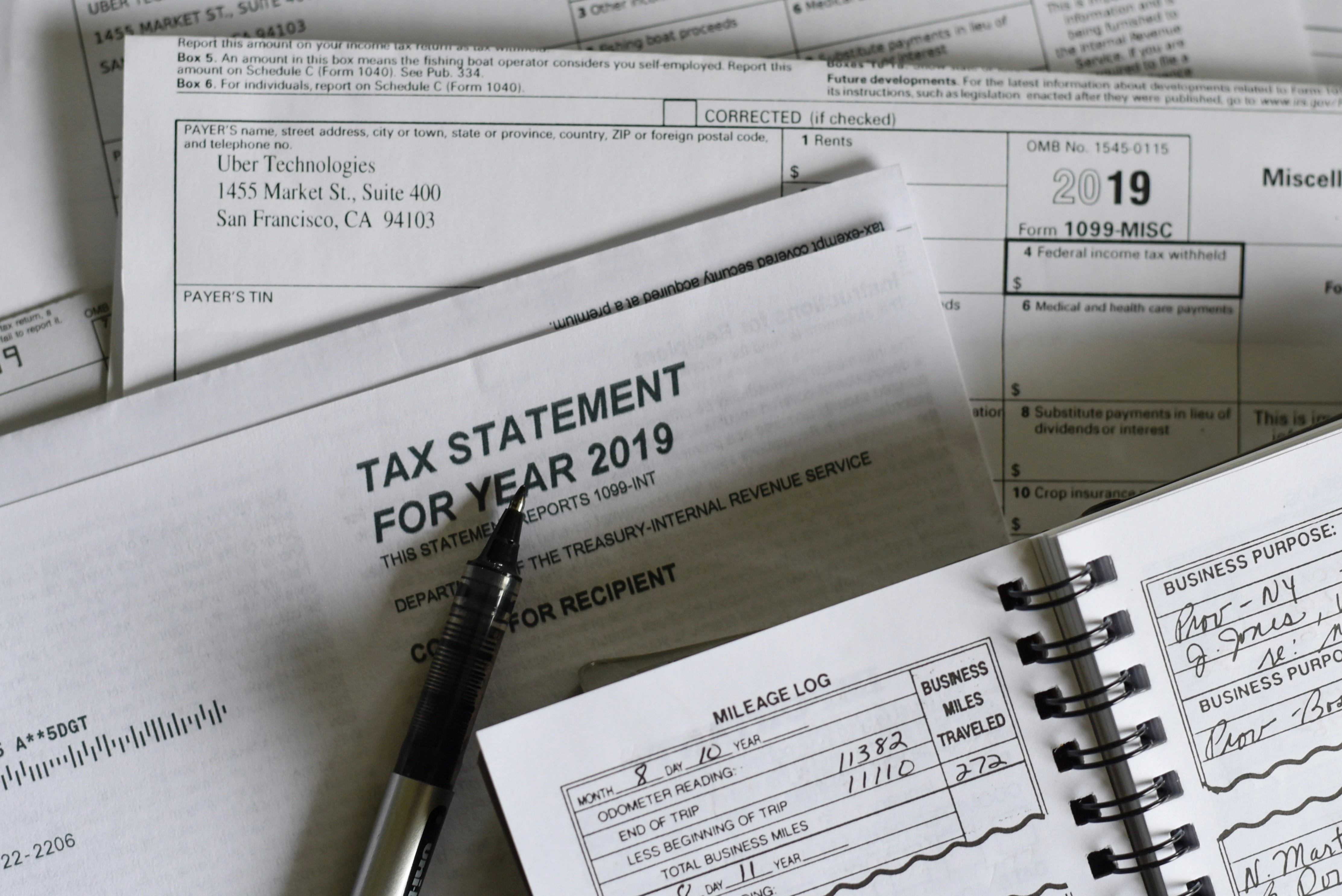
    Expense reports are a pain. After a business trip, the last thing you want to do when you get back to the office is scan a pile of receipts using the copy machine and then attach them to your expense report. It’s easy to put this off, but the longer you wait the more likely you’ll forget to expense charges or loose the receipts before you submit them:

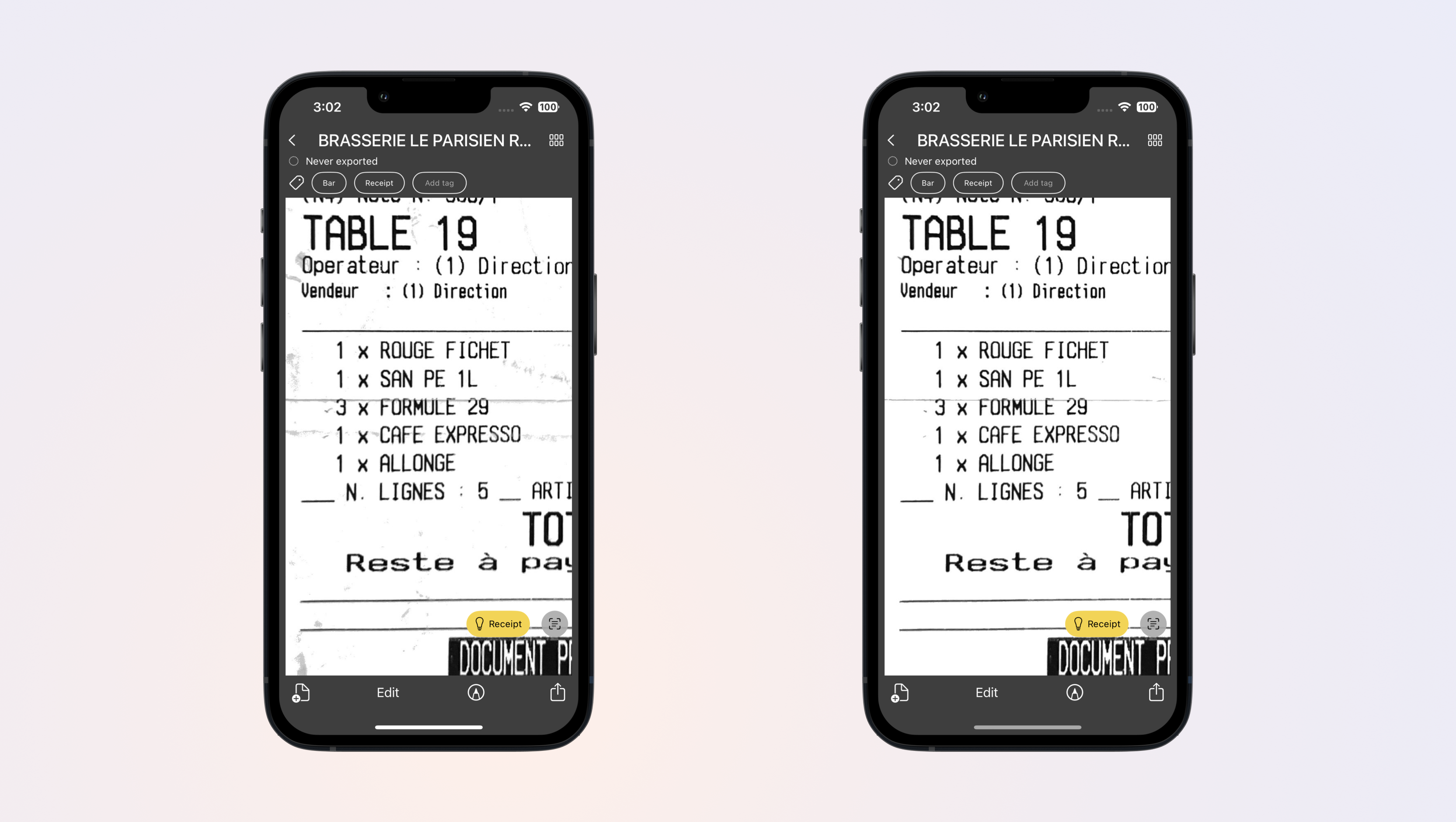
    With Genius Scan, you can scan all your receipts and save them in one unique PDF document. Once you are done, export the document and attach it to your expense report. Even better: Genius Scan enables you to directly export your receipts to Expensify if it’s supported by your company.

    Make Sure You Graduate!

    Genius Scan is a great fit for the education world. A portable scanner makes it easy for students to share notes or to snap a picture of a whiteboard before it’s erased by the professor. Some teachers also ask students to scan and email their assignment. They also scan student assignments to share with the class as an example of what a good assignment should – or should not – look like.

    This is a true story. One day we received an email from an appreciative user explaining how Genius Scan had saved her graduation! On her way to hand in her final research paper, this user got stuck in a terrible traffic jam. Sitting there stuck in traffic, she realized there was no way she’d make it to school in time to hand in the paper. Lucky for her, she was able to use trusty pocket scanner to send in her final report from the car (not that we advocate scanning and driving!).


    These are just a few of the ways Genius Scan has helped millions of users. We hope to make even more people’s lives easier by allowing them to go paperless. With Genius Scan, you can declutter your life and never lose another piece of paper.

    Let us know if you have more stories on how a pocket scanner helped you: @thegrizzlylabs on Twitter or contact@thegrizzlylabs.com